Setup guide
From npx sigdek init to a report your auditor can check.
Joining a team? Accept your invitation first. If the project is already set up, pull it and start at step 2. A machine stays with the first team it connects to; to record for another team, run npx sigdek logout, delete ~/.sigdek, and log in again. The machine's local log goes with that folder, including any records it hasn't uploaded yet.
-
Set up your project
In your project's top folder. It sets up Claude Code and Cursor, and lists the files it added. Needs Node.js 18 or later.
npx sigdek initYou should see: SigDek is set up in this repository. Commit these files: …
Cursor on Windows:
npx sigdek init --windows, which hasn't been tried in the Cursor app on Windows yet. -
Connect your machine
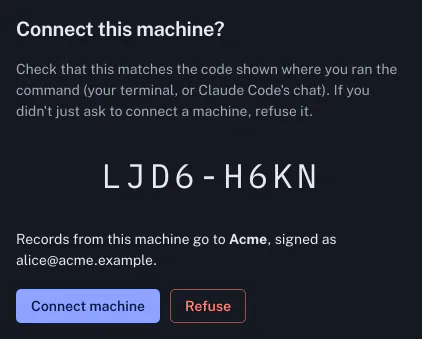
npx sigdek loginYour browser opens SigDek. Sign in, check the code, and choose Connect machine. If you aren't in a team yet, signing in asks you to name a new one, which starts a 14-day trial with no card.
You should see: Signed in as alice@acme.example to Acme. This machine's records now upload in the background.
No account? Skip
login. Records stay on your machine:npx sigdek logshows them andnpx sigdek verifychecks their hash chain. If you sign in later, only what agents do after that uploads. The recorder is open source on GitHub.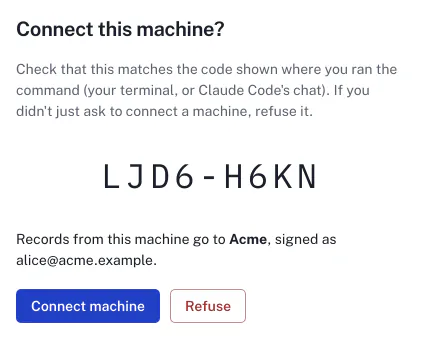
-
Start a new session
Start a new Claude Code or Cursor session in that folder and work as usual. A session that was already open may not have picked up the new hooks.
Did it work?
npx sigdek statusYou should see: [x] Claude Code records in this project, through its hooks in .claude/settings.json
-
Or the Claude Code plugin
In Claude Code in a terminal:
/plugin marketplace add tektonsoftware/sigdek/plugin install sigdek@sigdek/sigdek:connectChoose Install for you (user scope): installed that way, it changes no repository. It records Claude Code, not Cursor, in every project on this machine.
/sigdek:connectconnects the machine, asnpx sigdek logindoes. In VS Code or the desktop app -
Watch Activity
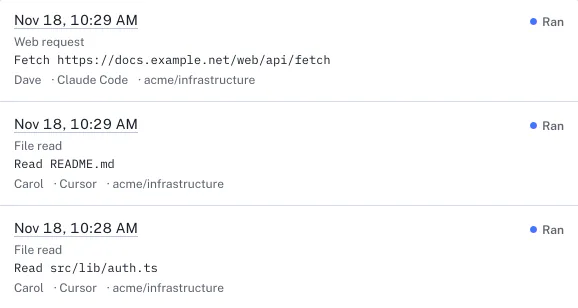
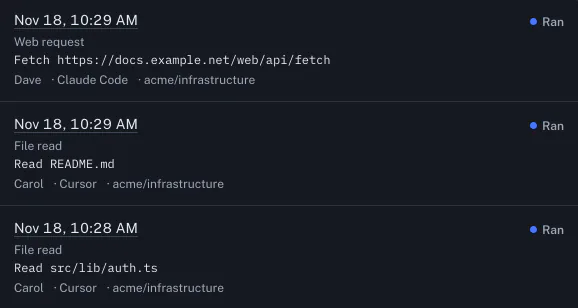
Each action shows in Activity once the agent finishes its turn. Filter by person, kind, result or rule, or open a row for the whole record.
Nothing there? See If something goes wrong.
-
Add your team
Commit the files
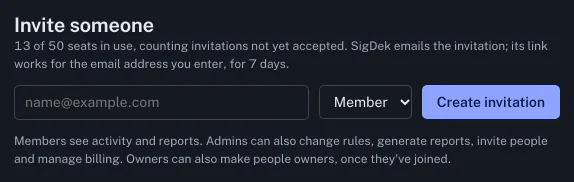
initlisted, so everyone who pulls the project is set up. Invite people under Settings, Members. Each accepts the emailed invitation, then runsnpx sigdek loginon their own machine.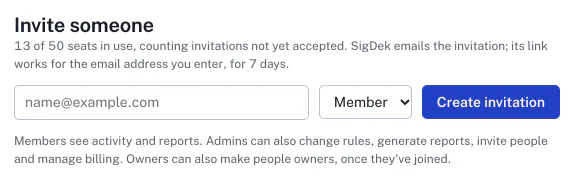
-
Add a Block rule
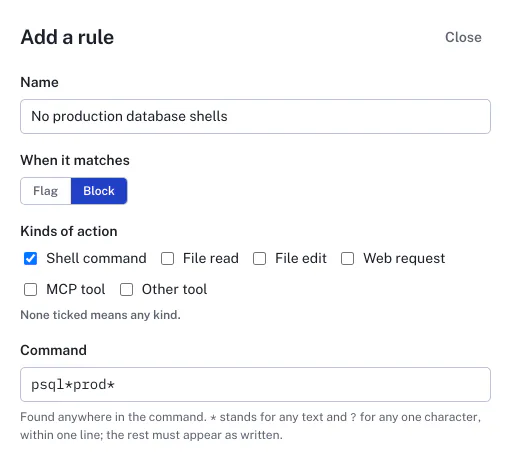
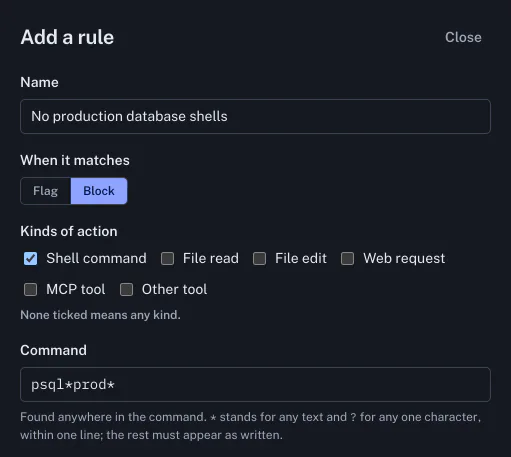
On the Rules page, choose Add a rule, name it, pick Block, and give a pattern and a message for the developer. Machines pick it up with their next upload, within about a minute while the agent is in use; try it in a new prompt after that. Learn more about rules
-
Make a report and check it
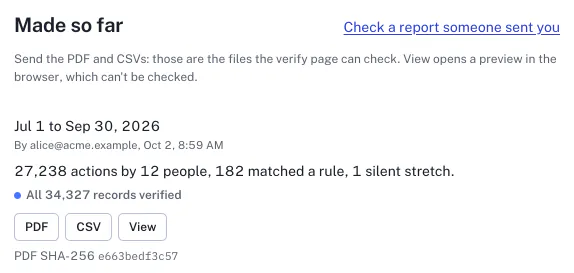
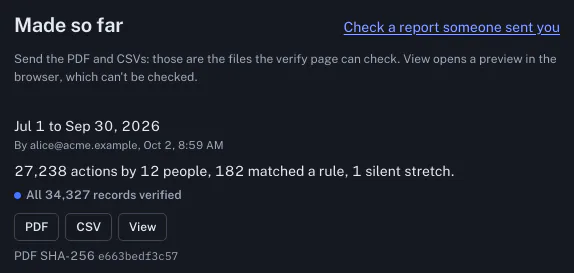
Owners and admins generate a PDF and a CSV for any period within the last 13 months. Anyone can check them on SigDek's verify page.


If something goes wrong
run `npx sigdek init` inside a git repository- Run it inside your project.
initneeds a git repository. Warning: git ignores these files- A
.gitignorerule covers some of SigDek's files, so a commit would leave them out and teammates wouldn't be recorded. Add them with thegit add -fcommandinitprinted, or change the rule. - The browser didn't open for
npx sigdek login - Open the link after
Approve it at:yourself. The terminal finishes on its own once you choose Connect machine. a machine can't move between teams- This machine first connected to another SigDek team, and a machine stays with the first team it connects to. If you're on that team too, run
npx sigdek loginagain and choose it when you approve. To record for this team instead, runnpx sigdek logout, delete~/.sigdek, and log in again; the machine then connects as a new one, its uploaded records stay with the first team, and its local log goes with the folder. - Nothing shows in Activity
- Records upload when the agent finishes its turn, so wait for its reply. Then run
npx sigdek statusin the project's top folder: each line marked[ ]says what's missing, and the next step. A session records only when it starts in that folder (in Cursor, when that folder is the workspace), and one that was open before the setup may need restarting. What an agent did before the machine first signed in stays on the machine and doesn't upload. - Cursor on Windows records nothing
- Run
npx sigdek statusin the project on that machine. If it says Cursor on Windows can't run this project's Cursor hooks, runnpx sigdek init --windowsand commit the change. Those hooks haven't been tried in the Cursor app on Windows yet. Cursor on Windows
More in the docs. Still stuck? Write to support@sigdek.com with what npx sigdek status says.